Trip Planning
Now that you’ve set up your trip, let’s dive into viewing and watching trips.
Viewing trips
When you first open the watch app, you’ll see the main screen:
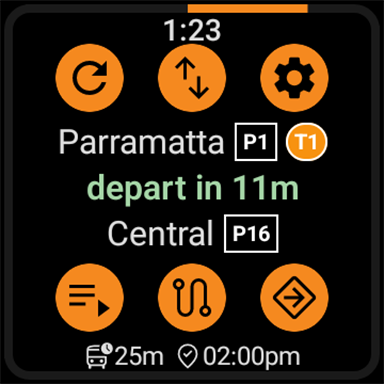
Let’s go over what each part of the screen means:
At the top, we have the current local time.
Next up, the first row of action buttons:
- ( ) Refresh: Reload the list of trips
- ( ) Reverse: Swap the origin and destination of the current trip
- ( ) Settings: Open the settings screen
Then, we have the trip details:
- The origin and destination stops, which is broken into:
- The stop name
- The platform/stand/wharf
- The line or route number
- The time remaining until the next trip action, eg depart/arrive/change
Then we have the second row of action buttons:
- ( ) Trip list: Open the trip list. This icon will change depending on the state of the trip:
- ( ) The current trip is watched. It is being suggested by the TfNSW Trip Planner
- ( ) The current trip cannot be found in the list, and is no longer suggested by the TfNSW Trip Planner
- ( ) Route: Jump to the trip details screen and show the segments of the current trip
- This button will be green if the trip is watched.
- ( ) Navigation: Start navigation for the current trip. Watches the trip if not already watched
- This button will be green if navigation is active.
Finally, we have some more information in the footer:
- ( ) Trip time: The remaining duration of the trip, from the start time (or current time if already began) to the arrival time
- ( ) Arrival time: The arrival time at the destination stop
You will notice a ring around the edge of the screen. This ring indicates how long until the next automatic refresh of trip data, which occurs every 30 seconds.
Trip list
Press the ( ) trip list button to open the trip list.
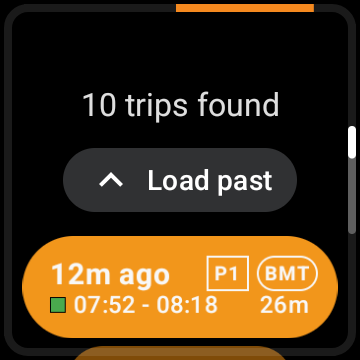
Here, you can view all the trips that are currently suggested by the TfNSW Trip Planner.
Similarly to the main screen, for each trip, it shows:
- The time until departure
- The platform/stand/wharf (only shown for single segment trips)
- The line or route number of each trip segment
- If there are too many to display, then a +N badge will be shown
Then, the bottom row, it shows:
- An icon indicating the realtime status of the trip:
- If the icon is a coloured square, then realtime data was fetched:
- The trip is on time
- The trip is early
- The trip is a little late (less than 2 minutes)
- The trip is late (2-5 minutes)
- The trip is very late (more than 5 minutes)
- If no icon is shown, then realtime data is still loading
- ( ) Realtime data is not available
- ( ) The trip is cancelled or origin/destination is skipped
- If the icon is a coloured square, then realtime data was fetched:
- The departure and arrival time of the trip
- The duration of the trip
You can click the Load past and Load next buttons to load more trips. This is temporary, and the next auto-refresh will reset the list to the current time.
Any other settings affecting the trip list will also be shown here, for example, a watched trip or active schedule: